
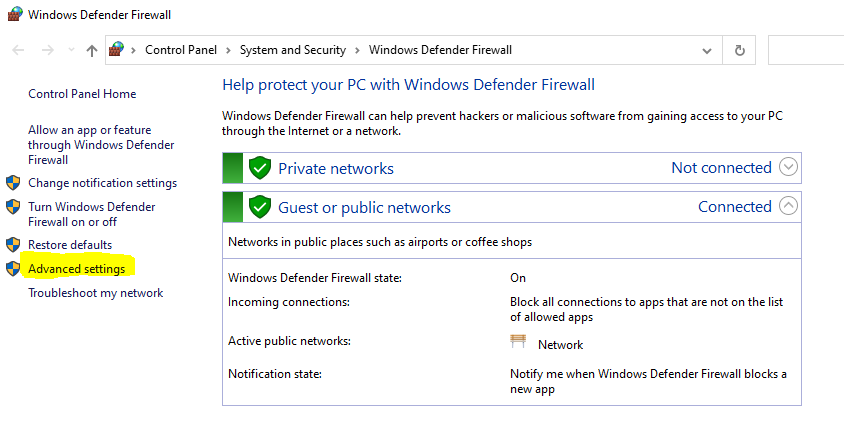
1. Go to Windows Defender Firewall and open it-

2. Click on advance settings -
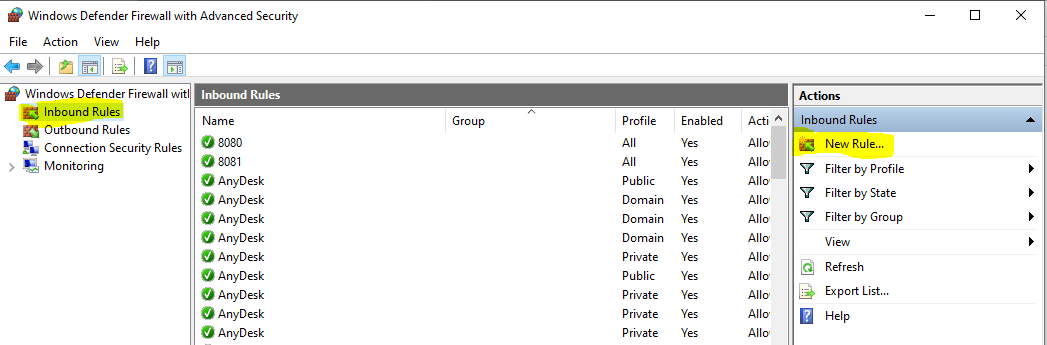
3. Click on InBound and then New rule -
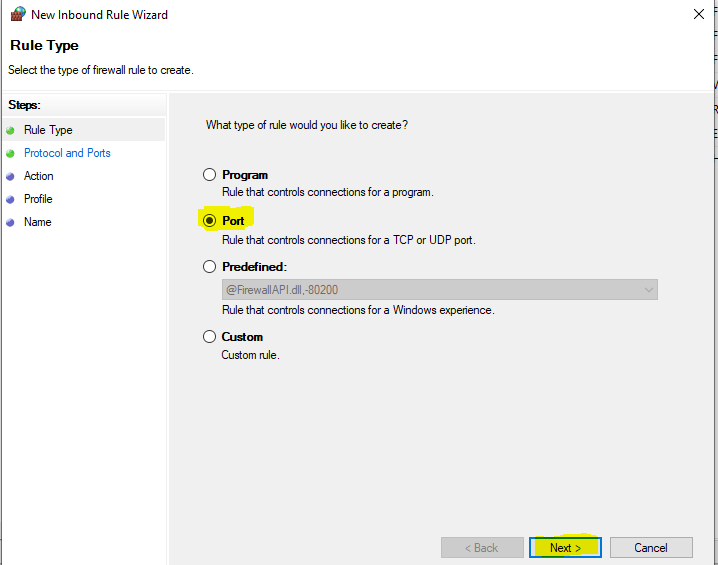
4. Click on Port and then Next -
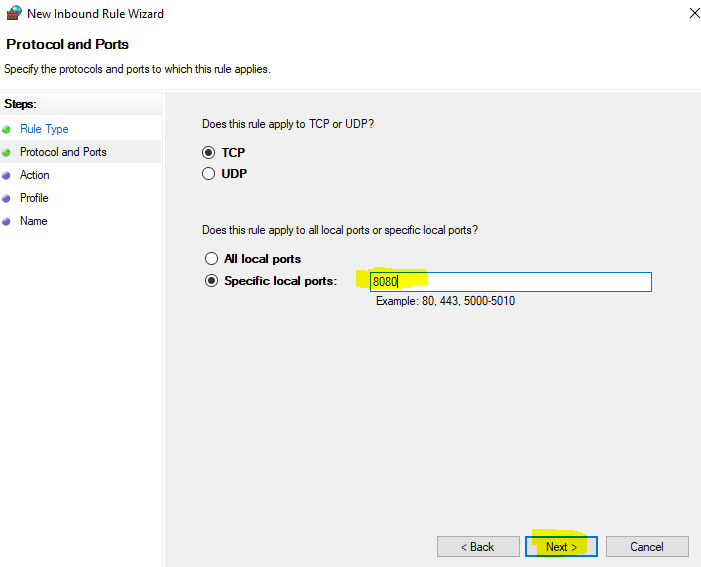
5. Put specific Port 8080 and then click on next -
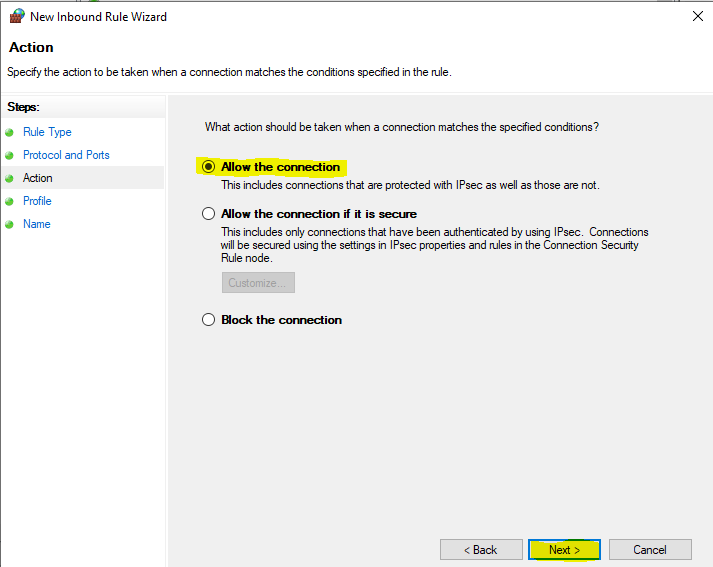
6. Click on Allow connection and then next -
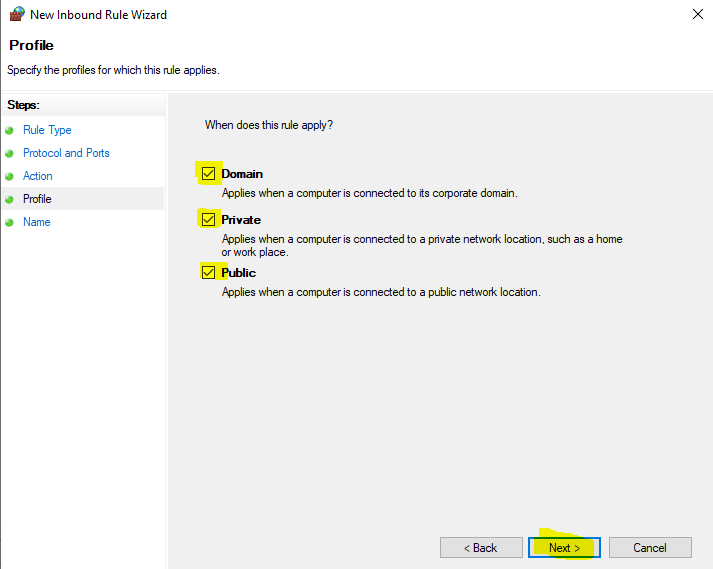
7. Make sure all check box are clicked and then click on next -
8. Put Name of the Port and then Finish -
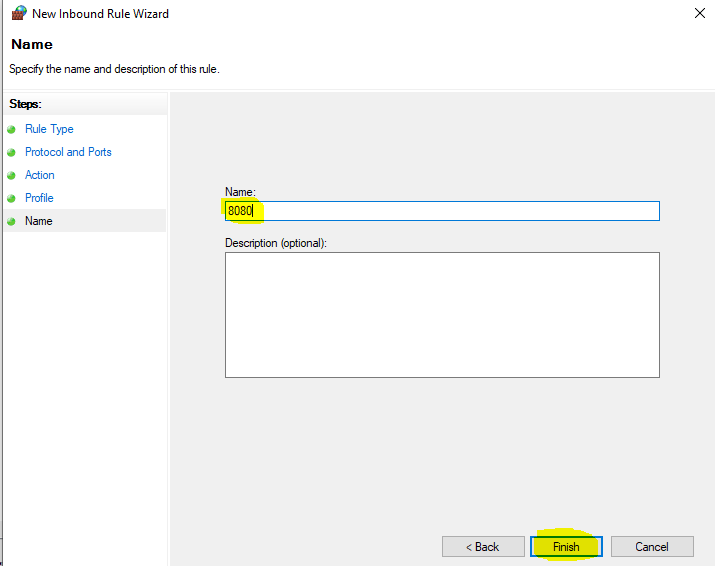
9. New inbound rule added similar procedure follow to Outbound. In Inbound and outbound rule list you can see port added -

Note - You can also add below ports as per requirement -
1. FTP port - 20-21
2. TCP Port - 502-505